♪
Local AI generation
Generate complete tracks through your own ComfyUI install using ACE-Step 1.5 or MiniMax Music 3.
Fenix Music Studio is a standalone Windows music creation app built around local AI generation. Create with ACE-Step 1.5 or MiniMax Music 3, organise your tracks, edit, master and manage projects without sending your library to a cloud service.
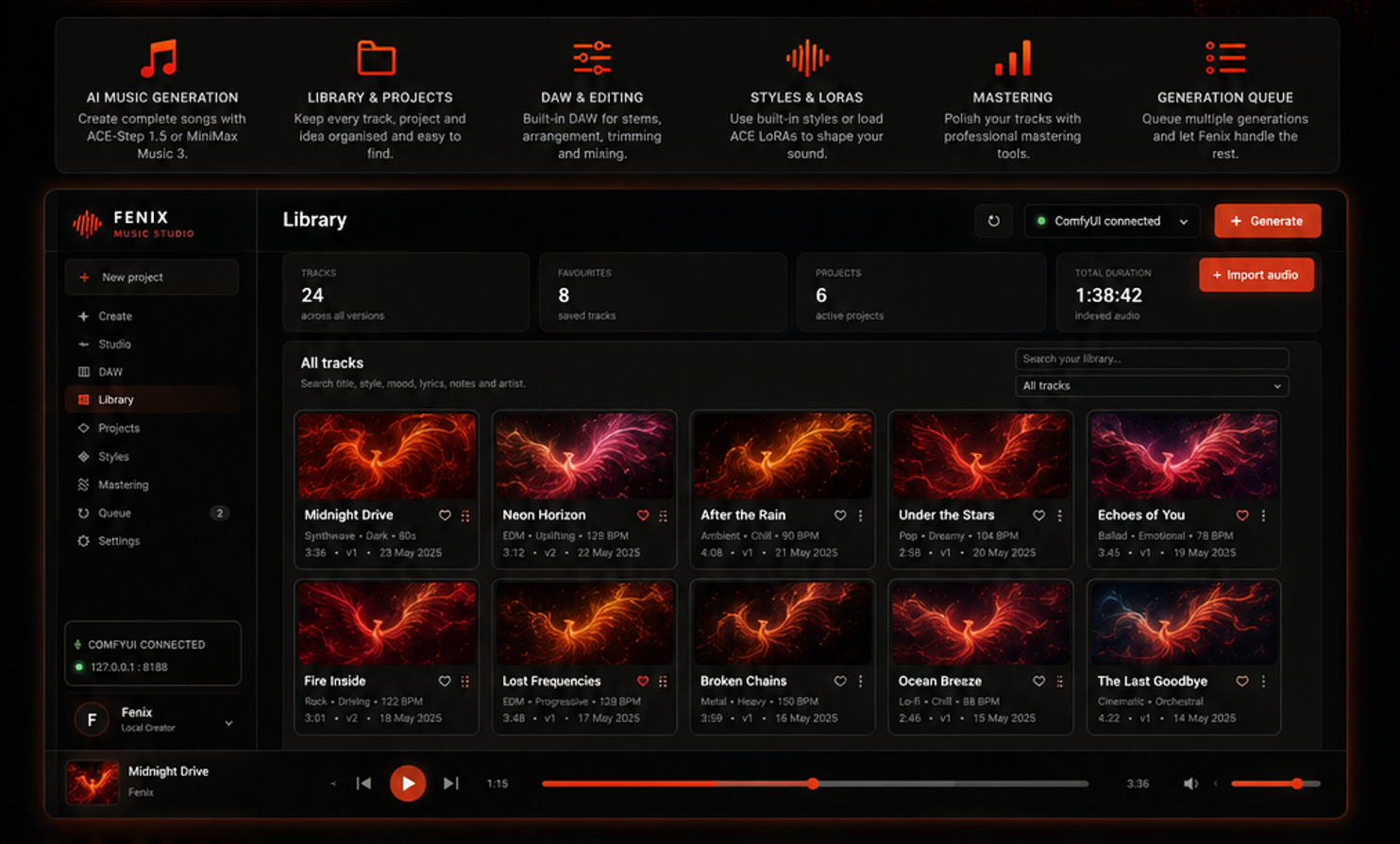
Fenix Music Studio keeps the whole music workflow in one focused desktop app, from the first prompt to the finished audio file.
Generate complete tracks through your own ComfyUI install using ACE-Step 1.5 or MiniMax Music 3.
Start quickly with streamlined controls, then open deeper generation options when you want full control.
Keep generated and imported tracks indexed locally with search, favourites, projects and metadata.
Move from generation into editing without leaving the app, with project-based audio tools built around the music.
Organise reusable styles and use compatible ACE-Step LoRAs stored in your normal ComfyUI model folders.
Finish tracks inside the studio. Optional FFmpeg support expands mastering, conversion and audio analysis features.
Queue work instead of babysitting each generation and keep track of what is waiting, running or complete.
Group tracks, versions and related work together instead of dumping everything into one endless output folder.
Audio remains on disk and the app indexes it locally. Your tracks are not locked inside a proprietary cloud library.
No complicated platform stack. Fenix Music Studio stays focused on the actual music workflow.
Both generation workflows are supplied internally by Fenix Music Studio. Normal users do not need to download, import or edit workflow JSON files.
A flexible local music generation engine with native ComfyUI support and optional LoRA loading.
models/loras/ace/Higher-end local music generation with a recommended FP16 model and an INT8 alternative for lower-VRAM systems.
Fenix Music Studio itself is lightweight. Model execution is handled by your existing ComfyUI installation.
Fenix Music Studio connects to ComfyUI over its local HTTP API. CUDA, PyTorch, Python, GPU drivers and model execution remain entirely inside your ComfyUI installation.
Use an up-to-date ComfyUI build. No third-party custom-node package is required. Fenix uses native comfy-core audio nodes for ACE-Step 1.5 and MiniMax Music 3.
ComfyUI should normally be available at:
http://127.0.0.1:8188
A different address or port can be configured later inside Fenix Music Studio Settings.
Place these four files into the matching folders inside your ComfyUI installation:
ComfyUI/
└── models/
    ├── diffusion_models/
    │   └── acestep_v1.5_turbo.safetensors
    ├── text_encoders/
    │   ├── qwen_0.6b_ace15.safetensors
    │   └── qwen_4b_ace15.safetensors
    └── vae/
        └── ace_1.5_vae.safetensors
Optional ACE LoRAs can be stored in:
ComfyUI/models/loras/ace/
Subfolders are supported. The recommended ACE model set is approximately 14.7 GB.
The recommended MiniMax Music 3 setup uses the FP16 diffusion model:
ComfyUI/
└── models/
    ├── diffusion_models/
    │   └── minimax_music3_dit_fp16.safetensors
    ├── text_encoders/
    │   └── minimax_music3_text_encoder_pruned_int8_convrot.safetensors
    └── vae/
        └── minimax_music3_dav.safetensors
The recommended MiniMax model set is approximately 14.3 GB. Fenix automatically detects compatible MiniMax filenames.
Start ComfyUI before generating music. Fenix Music Studio will connect to the local API and use its built-in ACE-Step 1.5 and MiniMax Music 3 workflows automatically.
You do not need to import workflow JSON files for normal use.
FFmpeg is not required to generate or play tracks. It is optional and used for extra mastering, conversion and extended audio-analysis functions.
Generate with your own hardware, keep the files on your own machine, and manage the full music workflow from one Windows app.